Download WB8RCR's QSL MAKER and Dial Programs Here
Posted with Permission
Often the subject of making our own QSL cards comes up in conversation, and just as often
John McDonough, WB8RCR's program QSLMaker is mentioned. Download links have been a little difficult to find on the web,
so I made this page available with John's permission. Being a long time user of the program, I've worked out some
tips and tricks for using it. They and all of the needed files are in the zipped file described below.
Additionally hombrewers often need the ability to create a dial face for tuning or volume controls.
John's easy to use program Dial Maker was created for that purpose. It is very intuitive to use and download links are included below also.
Enjoy the programs.
QSL MAKER (scroll down for Dial Maker)

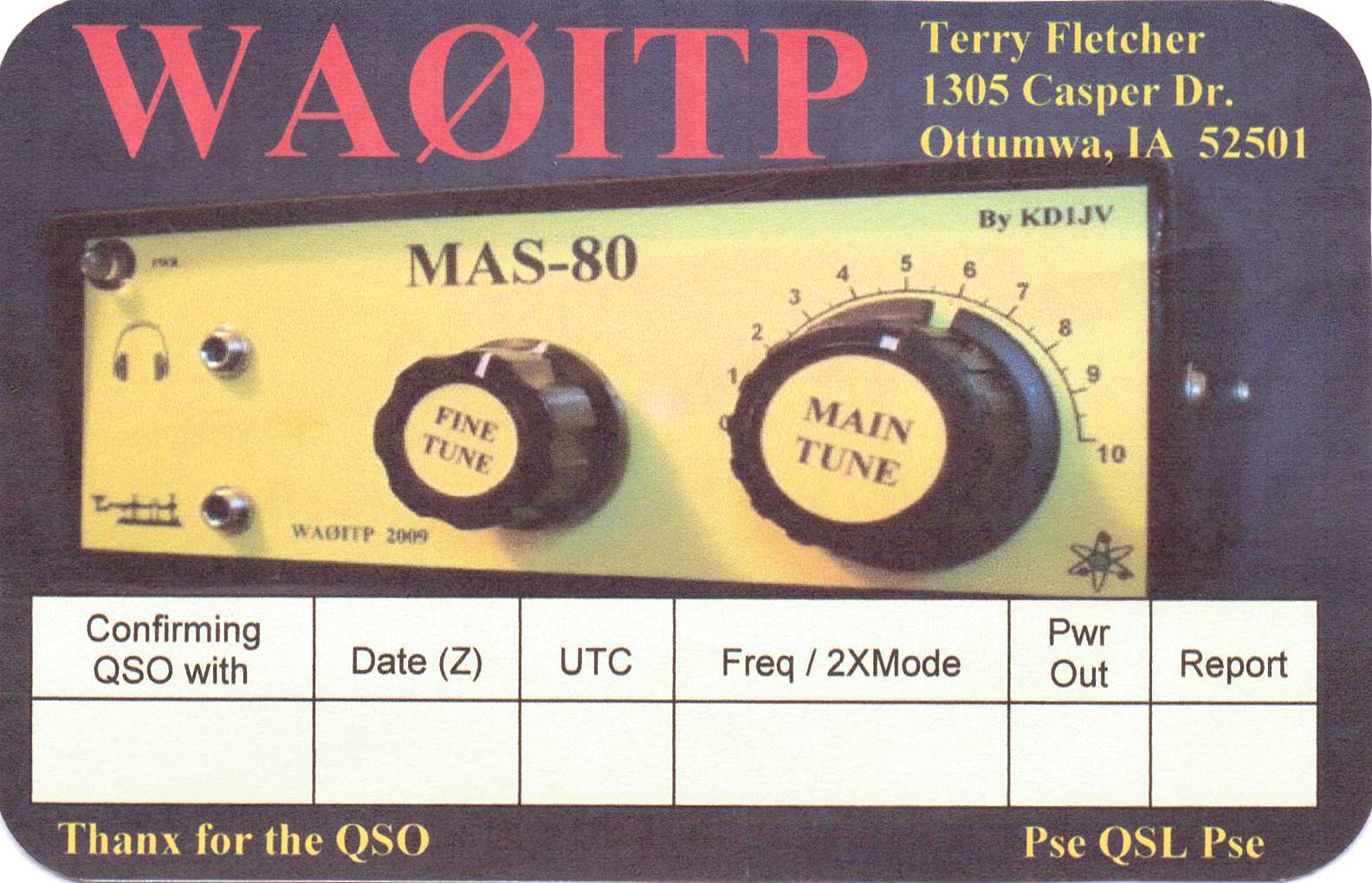
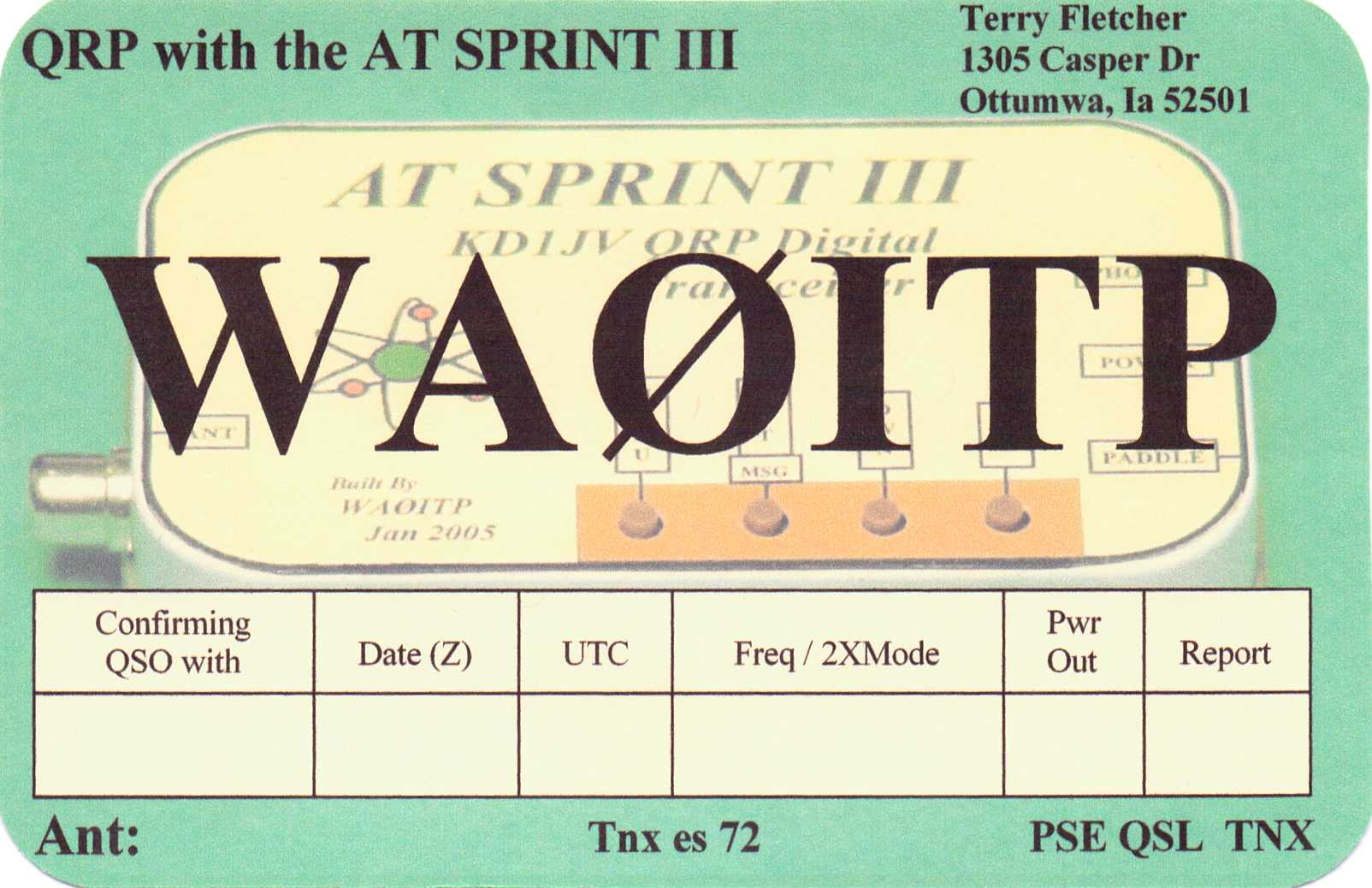
Here is a zipped file with all the files required to run John's FB QSL Maker program.
Create a folder on your computer named QSLMaker and copy the zipped file
QSLMaker.exe into it, see link below. This is a self extracting zip file.
After downloading into the folder, double click it to extract the zipped
files. All the files needed to get started are now in the folder.
First thing to do is to read the Read Me First.pdf file.
Click here to download QSLMaker.exe
Windows users: Right click and "save link as".
DIAL MAKER (scroll down)
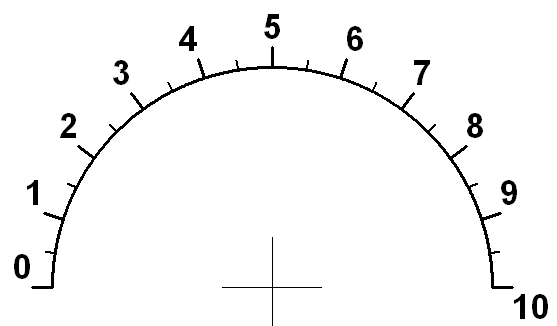
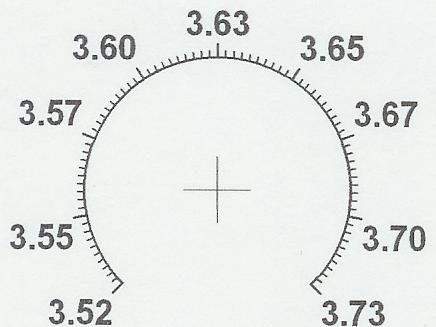
Here are the files required to run John's FB Dial Maker program.
Download them all to the same folder and double click on dial.exe to begin
creating your own custom dial face.
The examples above were created with the program, one was for my MAS80
which uses a polyvaricon, and the other for WAØMWW's SW80+
which uses a pot/varactor combo. The program will come up with a default 270 degree dial face with 20M freqs.
Click "Settings" to customize it to your needs. It is neccessary to double click the help
file dial.hlp in order to access the help topics.
NOTE: A generic dial with 10 divisions can make an effective frequency dial when used
with a calibration chart such as this one.
Dial.exe
Dial.hlp
Dial.cnt Windows users: Right click and "save link as".
Useful information (pdf files):
Note from John McDonough, WB8RCR
Inserting the dial into your label.